
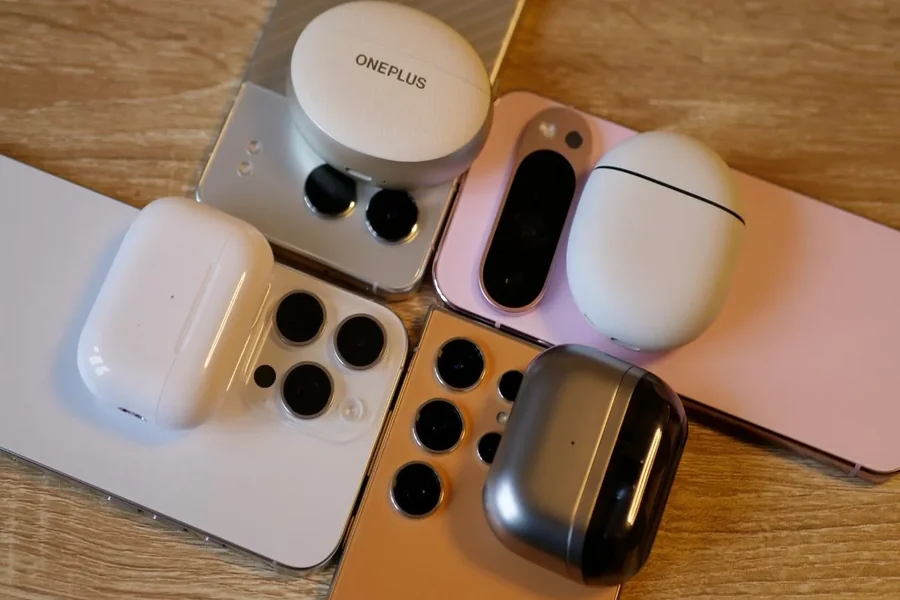
Google Pixel earbuds are designed to provide convenient wireless listening for music, calls, videos, and everyday activities. However, understanding compatibility before buying or connecting a pair can help you avoid connection problems and make the most of your earbuds. Whether you use a Google Pixel phone, another Android device, an iPhone, or a computer, checking the available features is an important first step.
The good news is that many Google Pixel earbuds work with a wide range of Bluetooth-enabled devices. However, basic audio compatibility does not always mean every feature will be available. If you regularly follow mobile technology updates through pixelspinx, you may already know that device compatibility can depend on your phone’s operating system, Bluetooth support, and the specific earbud model.
1. Which Devices Support Google Pixel Earbuds?
Google Pixel earbuds, including Pixel Buds models, generally connect to devices that support Bluetooth audio. This means you can usually use them with more than just Google Pixel smartphones.
Google Pixel phones: Pixel phones offer convenient pairing and access to supported earbud settings. Depending on the model, you may also get additional features through system settings or Google’s companion software.
Other Android phones: Many Samsung, Motorola, OnePlus, and other Android smartphones can connect to Pixel Buds through Bluetooth. Some models may offer quick pairing, app-based controls, and additional settings, depending on the Android version and earbud generation.
iPhones and iPads: Pixel Buds can generally connect to Apple devices through Bluetooth for listening to music, watching videos, and handling calls. However, certain Google-specific features and setup options may not be available in the same way as they are on supported Android devices.
Windows and Mac computers: Compatible computers can usually connect to Pixel Buds through their Bluetooth settings. This can be useful for online meetings, video calls, studying, and listening to music without using your phone.
Before purchasing, check the specifications for your exact Pixel Buds model. Compatibility and available features can differ between generations.
2. How to Pair Google Pixel Earbuds With Android
Pairing Google Pixel earbuds with an Android phone is usually straightforward. The exact process may vary depending on the model, but these steps work as a general guide.
First, make sure your phone’s Bluetooth is enabled. Charge your earbuds and place them in their charging case. If the earbuds are new, open the case near your phone and follow any pairing notification that appears.
If no notification appears, open your phone’s Bluetooth settings and search for available devices. Put the earbuds into pairing mode according to the instructions for your model, then select them from the list. Follow any additional prompts to complete the connection.
After pairing, play a short audio clip to confirm that sound is coming through both earbuds. You can also make a test call to check the microphones.
For supported models, additional settings may be available through the Pixel Buds app or your Android device’s built-in settings. These options can include touch controls, sound preferences, firmware updates, and other features. Availability depends on your device and software version.
If the earbuds have already been paired with another phone, they may reconnect to that device automatically. Turn off Bluetooth on the previous device temporarily if you experience pairing difficulties.
3. Connecting Pixel Buds to iPhone and Other Devices
Google Pixel earbuds can be useful even if you do not own a Google Pixel phone. Their Bluetooth connection allows many models to work with other compatible devices, although some advanced functions may be limited.
To connect them to an iPhone, open Settings and select Bluetooth. Put your earbuds into pairing mode and wait for their name to appear under available devices. Tap the name to connect.
For a Windows computer, open Bluetooth settings and choose the option to add a new Bluetooth device. Select the earbuds when they appear. On a Mac, open System Settings, select Bluetooth, and connect to the earbuds from the available-device list.
Once connected, you should be able to use basic audio features such as music playback and compatible microphone functions. However, you may not have access to every Android-specific feature, including certain customization options or integration tools.
If you plan to switch between a phone, tablet, and computer, check whether your specific Pixel Buds model supports multipoint connectivity or audio switching. These functions are not identical across all models, and connecting to multiple devices does not always mean the earbuds will switch automatically.
4. Common Compatibility and Pairing Problems
Even compatible devices can sometimes experience Bluetooth connection issues. Fortunately, several simple checks can resolve common problems.
The earbuds do not appear in Bluetooth settings. Confirm that the earbuds are in pairing mode and sufficiently charged. Move them closer to the phone and make sure they are not already connected to another device.
Only one earbud produces sound. Place both earbuds in their charging case, check that they are charging correctly, and reconnect them. If the issue continues, consult the instructions for your model to determine whether a reset is appropriate.
The connection keeps dropping. Keep the phone and earbuds within a reasonable range, reduce interference from other wireless devices, and check whether your phone has pending software updates. Low battery levels may also affect normal use.
Some features are missing. Not every feature is supported on every phone. Check the earbud generation, operating system version, and available settings before assuming the earbuds are faulty.
The earbuds connect but the microphone does not work properly. Review the audio input settings in the app or computer you are using. For calls on a computer, confirm that the Pixel Buds are selected as the microphone and audio output device.
If basic troubleshooting does not work, forget or remove the earbuds from your device’s Bluetooth list and pair them again. A factory reset may help as a last resort, but follow the model-specific instructions because the procedure can vary.
5. What to Check Before Buying Google Pixel Earbuds
Choosing the right Pixel Buds model involves more than checking whether it supports Bluetooth. A few additional considerations can help you decide whether the earbuds will suit your devices and daily routine.
Bluetooth support: Confirm that your phone, tablet, or computer supports the necessary Bluetooth audio profiles. Most modern Bluetooth-enabled devices support standard wireless audio, but older hardware may have limitations.
Operating system requirements: Some setup tools and advanced controls require a compatible Android version or particular software. Check the requirements for the specific model you plan to purchase.
Available features: Features such as active noise cancellation, transparency modes, spatial audio, multipoint connectivity, and hands-free assistant controls may vary by model and device. Do not assume that every Pixel Buds generation includes the same functions.
Battery and charging: Compare advertised listening time, charging-case capacity, and charging requirements. These details affect convenience, particularly if you use your earbuds for work or travel.
Fit and comfort: Compatibility is not only about software. Consider ear-tip sizes, comfort during extended listening, water-resistance ratings, and whether the earbuds suit your typical activities.
Software updates: Updates can improve performance and fix bugs, but the available update process may depend on the earbuds and connected device. Check the manufacturer’s instructions to understand how your model receives updates.
Reviewing these details before buying can help you avoid paying for features you cannot use or choosing earbuds that do not fit your everyday needs.
Final Thought
Google Pixel earbuds offer flexible Bluetooth connectivity, making them useful for many Android phones, iPhones, tablets, and computers. However, basic audio support and full feature compatibility are different things. Your experience depends on the exact Pixel Buds model, the connected device, and its software.
For the best results, confirm compatibility before purchasing, follow the correct pairing procedure, and keep your devices updated. If a connection problem occurs, start with basic Bluetooth troubleshooting before trying a reset. Taking these steps can help you enjoy reliable wireless audio and get more value from your Google Pixel earbuds.
FAQs
1. Do Google Pixel earbuds work with Samsung phones?
Yes. Many Google Pixel Buds models connect to Samsung phones and other Android devices through Bluetooth. Some advanced features may depend on the model and software.
2. Can I use Google Pixel earbuds with an iPhone?
Yes. Compatible Pixel Buds can generally connect to an iPhone through Bluetooth for music and calls. Some Google-specific features may be unavailable.
3. Do Google Pixel earbuds work with Windows computers?
Yes. You can usually pair compatible Pixel Buds with a Windows computer that supports Bluetooth audio. Select them in the computer’s Bluetooth settings and choose them as the audio device.
4. Why will my Google Pixel earbuds not connect?
The earbuds may not be in pairing mode, their battery may be low, or they may already be connected to another device. Check these possibilities, restart Bluetooth, and try pairing again.
5. Do all Google Pixel Buds have the same features?
No. Features vary by model and generation. Noise cancellation, multipoint connectivity, audio controls, and other functions may not be available on every version.
6. Can I connect Google Pixel earbuds to two devices?
Some Pixel Buds models support multipoint connectivity, allowing connections to two devices. Check the specifications of your particular model to confirm support and understand how switching works.
